
Overview
This project turns an old, inexpensive router into a homemade WiFi Pineapple by flashing OpenWrt and then the WiFi Pineapple cloner firmware.Hardware requirements
Check compatibility first
Use the OpenWrt firmware selector to confirm your router supports custom firmware and is not locked down.
- Router: An OpenWrt-compatible model with unlocked firmware. This guide uses the TP-Link Archer AC1750 v5.
- USB stick: 16 GB or larger, used to expand the router’s storage.
Installation
1
Download OpenWrt 19.07.7
Install OpenWrt 19.07.7, the firmware version supported by the WiFi Pineapple cloner project.Download from the OpenWrt archive
2
Find your router build
Look up your router model and version and grab the 19.07.02 build for it.WiFi Pineapple cloner builds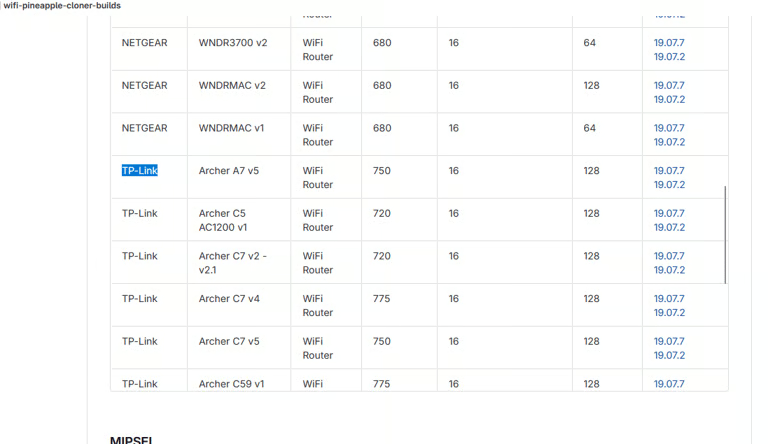
3
Flash the OpenWrt firmware
Depending on your router model and version, find the system upgrade option and upload the OpenWrt 
.bin firmware.4
Flash the WiFi Pineapple firmware
After uploading the OpenWrt Go to Backup / Flash Firmware and upload the WiFi Pineapple firmware.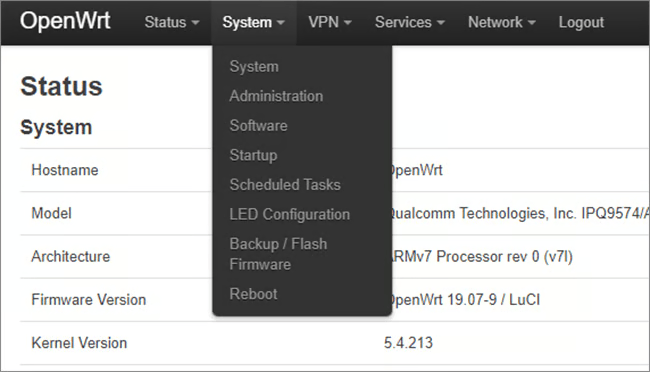
.bin file, wait about 5-10 minutes. Then open the OpenWrt GUI at 192.168.1.1.You will receive an IP address from the DHCP service running on OpenWrt.
5
Open the WiFi Pineapple interface
Wait about 5-10 minutes until the device issues a new IP address.Complete the default configuration based on your goals and setup.
Manage the router at 172.16.42.1:1471.
6
Expand storage with the USB stick
Connect to the WiFi Pineapple over SSH with your credentials, plug in the USB stick, and copy the whole overlay to it.Update the mount section in Reboot and verify that
/etc/config/fstab:/overlay is backed by the USB partition and that its available space has increased:7
Install modules and go
Connect the device to the internet, open the Modules section, and install the modules you want. Have fun.