Introduction
Qubes OS is a security-focused operating system used by many security professionals and penetration testers. It runs everything in separate, isolated virtual machines called qubes. Each application, terminal and operating system runs in its own private environment, so a compromise in one qube does not spread to the others. This page covers the hardware requirements and a step-by-step installation from a USB stick.Requirements
Installation
1
Download Qubes OS
Download the stable release ISO from the Qubes OS downloads page.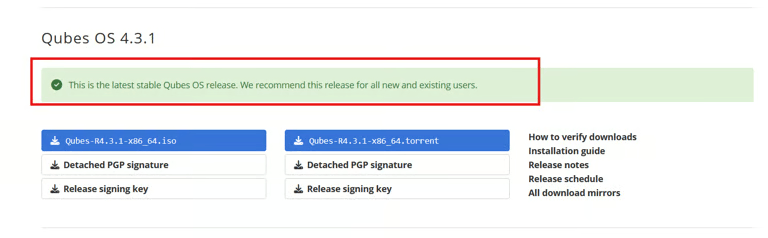
2
Install Rufus
Download and install Rufus, which you use to write the ISO to a USB stick.
3
Create the bootable USB stick
Open Rufus, select your USB stick and the Qubes OS ISO, then start writing.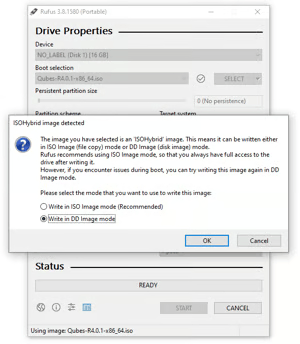
4
Configure your BIOS
Restart your computer, open the BIOS or UEFI settings, and:
- Enable virtualization.
- Disable Secure Boot.
- Set the computer to boot from the USB stick.
5
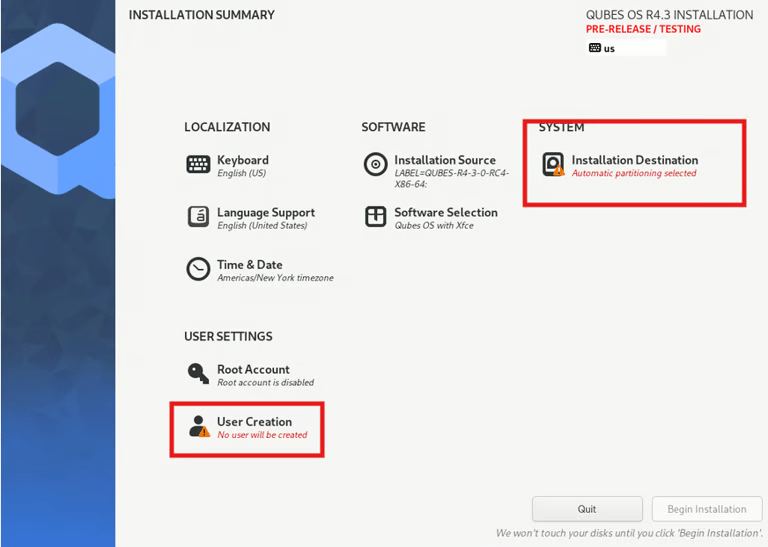
Start the installer
In the GRUB boot menu, select the last option: Install Qubes OS using kernel-latest.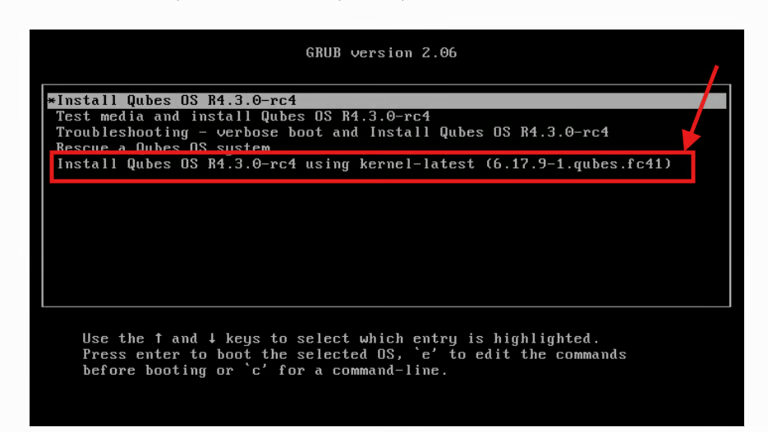
6
Select and encrypt the disk
Select the disk to install on and enable the Encrypt my data checkbox.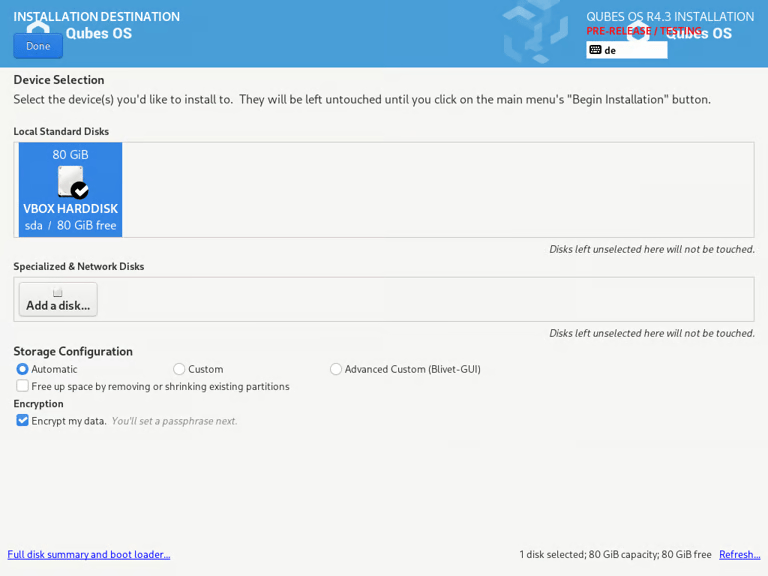
7
Open the Qubes OS configuration
After the installation finishes and the system reboots, click Qubes OS under System to configure the environment.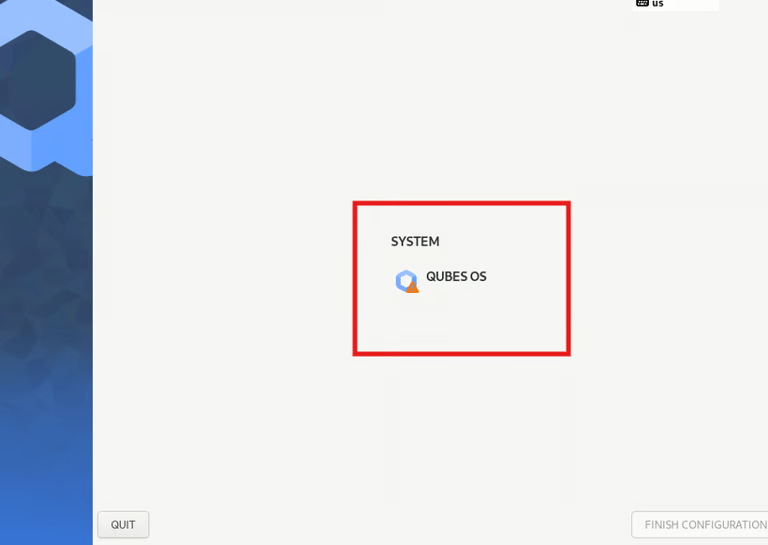
8
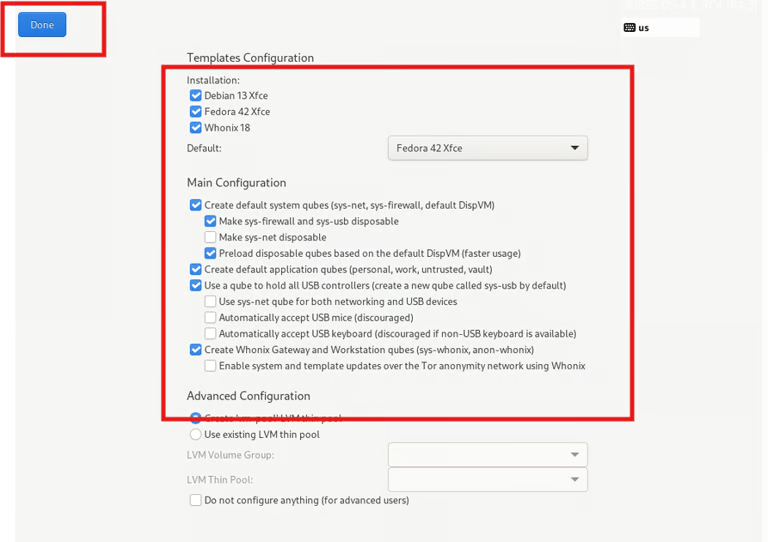
Choose templates and default qubes
Select the templates (for example Debian, Fedora, and Whonix) and the default system and application qubes you want, then click Done in the top-left corner.